> ## Documentation Index
> Fetch the complete documentation index at: https://docs.goarif.co/llms.txt
> Use this file to discover all available pages before exploring further.
# Teams and Projects
> Create and manage teams and projects in Goarif.
### **Manage teams**
You will have one team to manage, where you can invite other members to join and collaborate on projects. You can invite your members to join your team and they can leave the projects.
1. Click your account profile at the top-right corner of the screen and choose **"Team"**
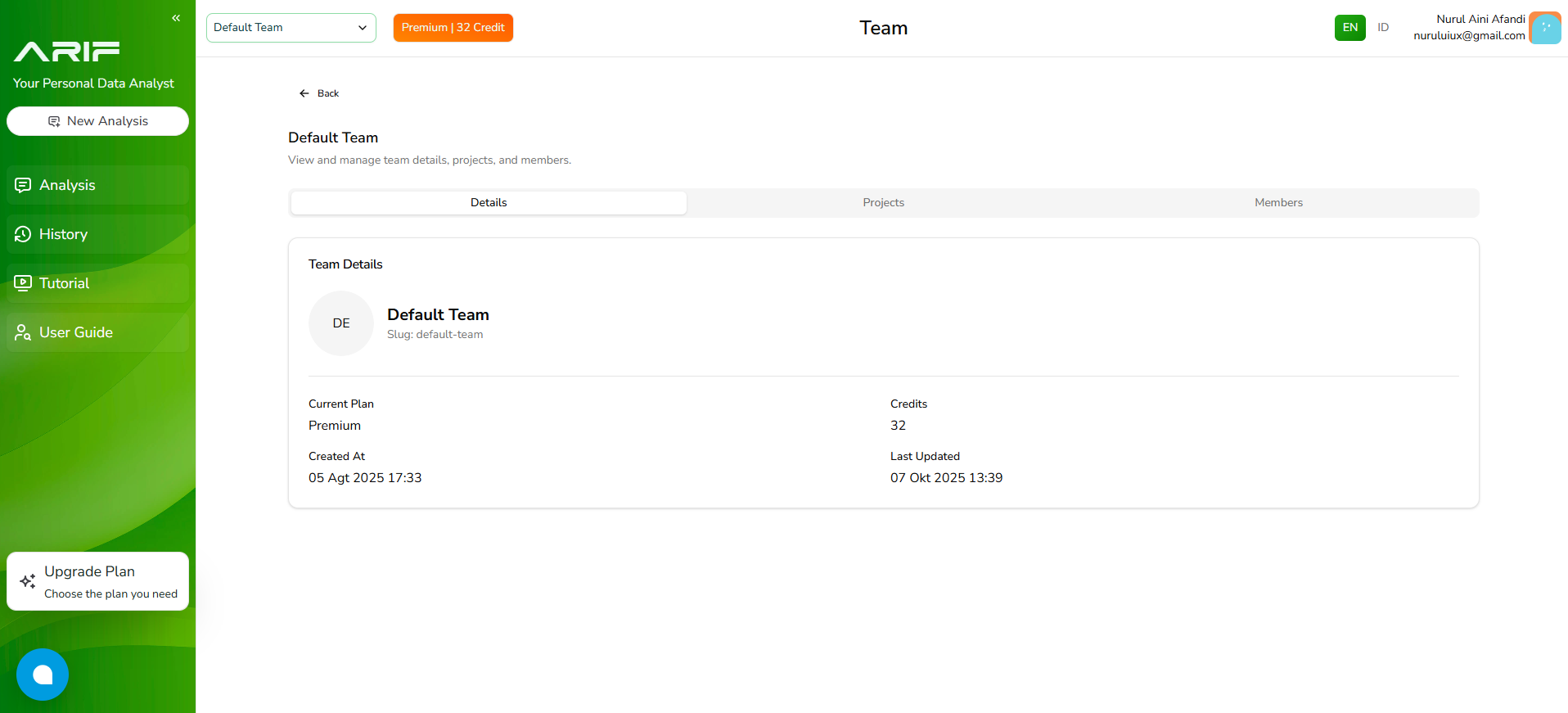
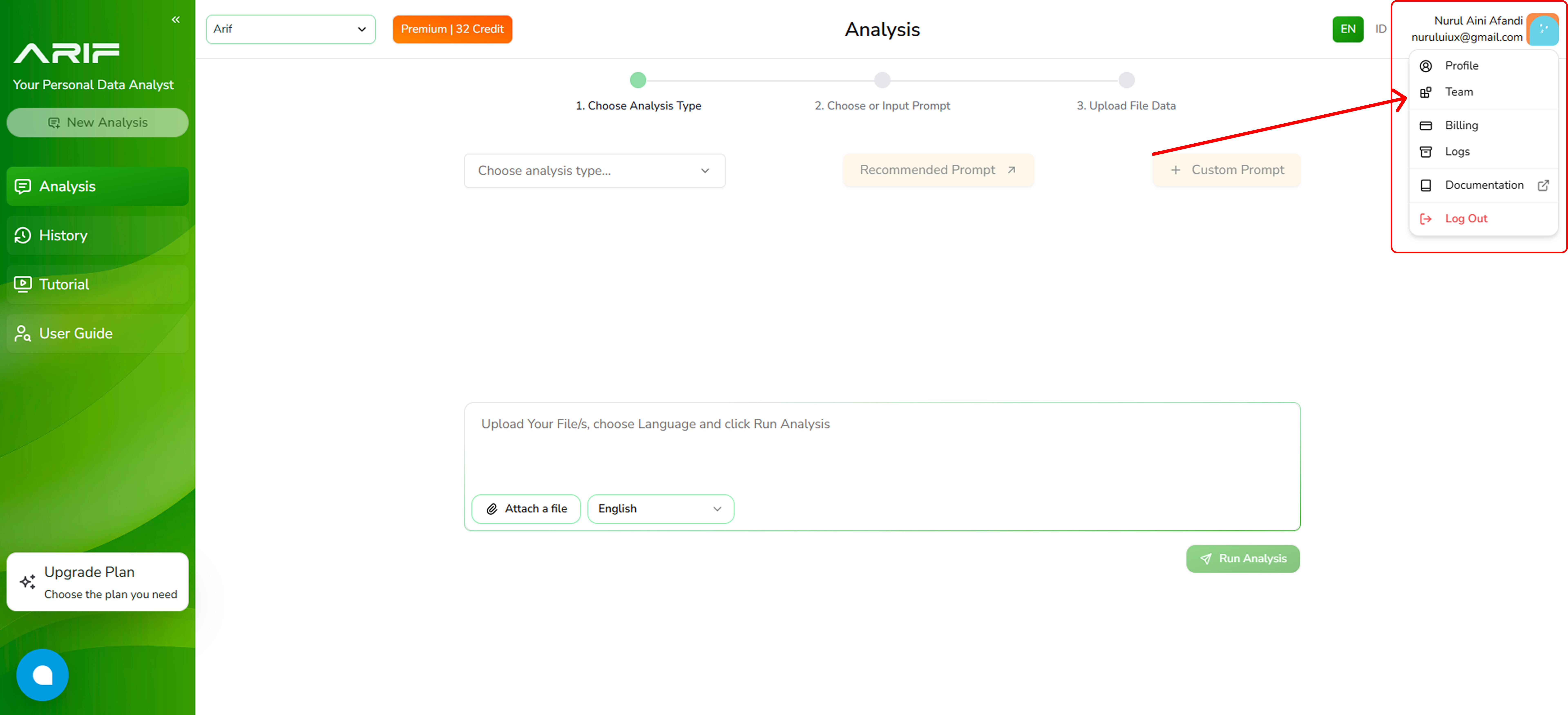 2. There are 3 slide bars: Details about your Projects and Members.
 **[](https://docs.goarif.co/teams-projects)Creating New Projects**
You can create a project to share with your team members. It will help you to work together as a team. Only team members of the same project can access and work on the data and result analysis.
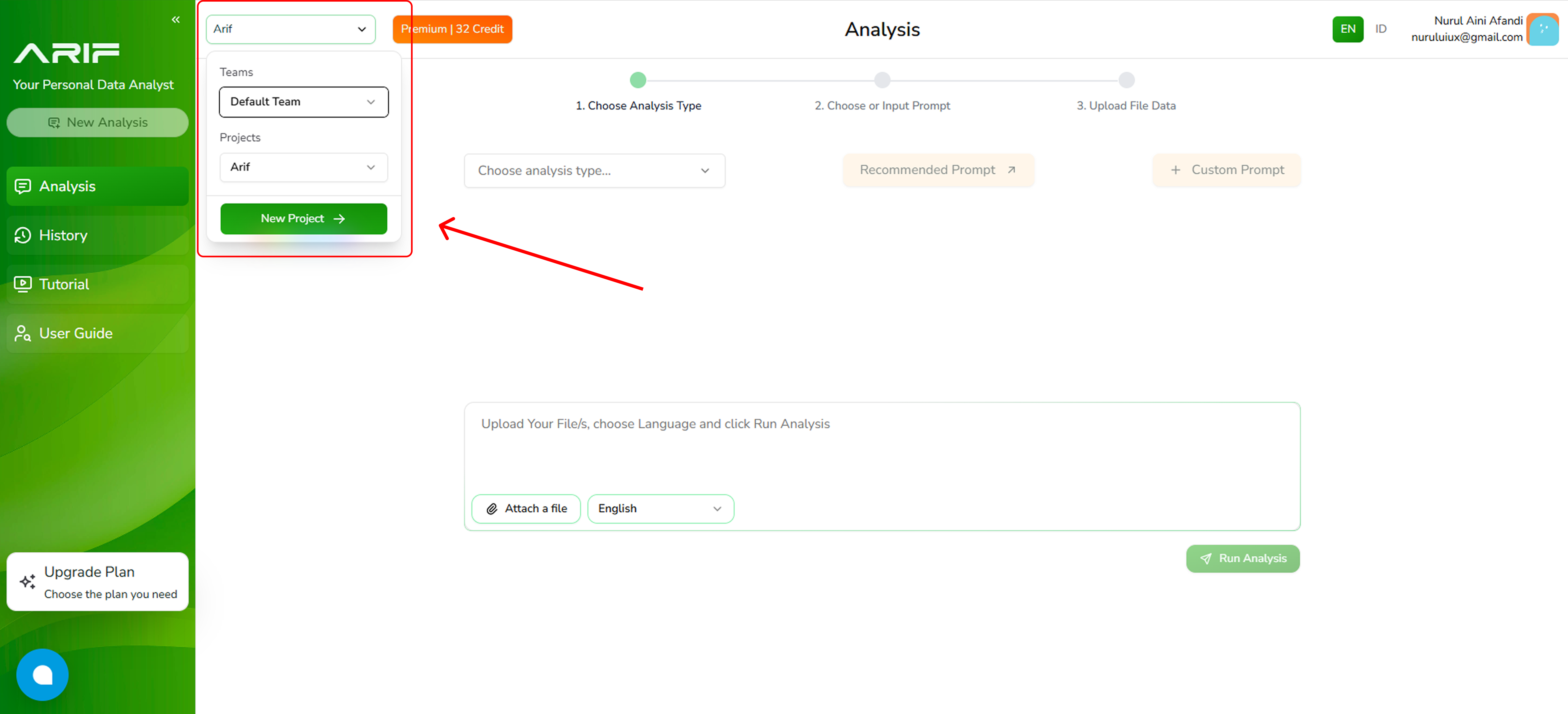
1. Click the **"Default team"** dropdown and click on the **"New Project"** button.
**[](https://docs.goarif.co/teams-projects)Creating New Projects**
You can create a project to share with your team members. It will help you to work together as a team. Only team members of the same project can access and work on the data and result analysis.
1. Click the **"Default team"** dropdown and click on the **"New Project"** button.
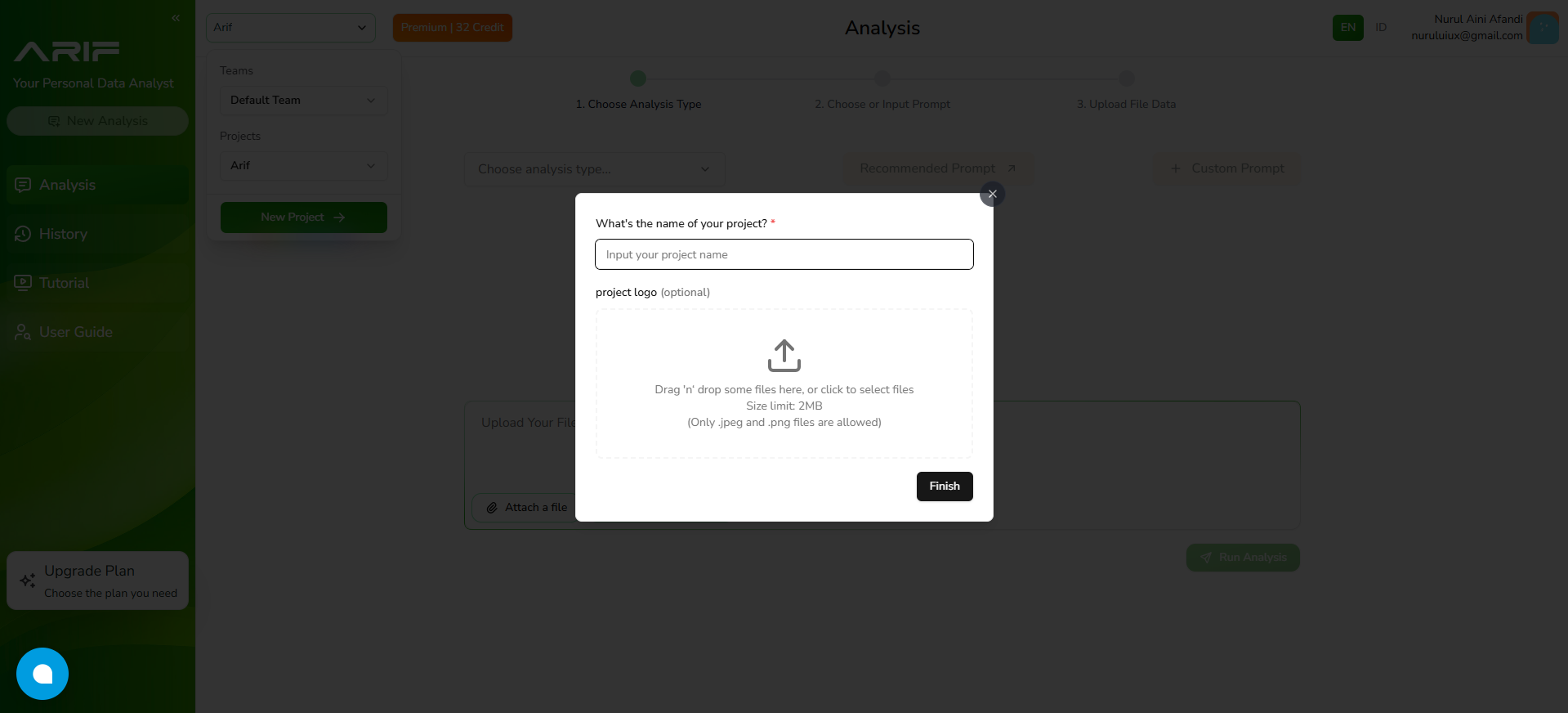
 2. A pop-up window will appear, allowing you to enter the project title and details, you can add the project logo optionally.
 3. Your new project has been successfully created. Now you can start analyzing your data.